

A business leader’s day, with Copilot.
A CEO’s day, from the morning briefing to getting ready for tomorrow, and the prompts that turn email, numbers and meetings into decisions. Copy them, fill in the brackets, and use them tomorrow morning.
Six moments. 12 prompts.
Copy a prompt, press Open Copilot to start Microsoft 365 in a new tab, and paste it in. Words in [brackets] are yours to fill in.
-
Copilot Chat8:00

Start with a daily briefing
Everything that needs a leader’s attention is spread across email, Teams chats, documents and the calendar. Copilot pulls it into one briefing before the first meeting.
Copy-paste promptCreate a daily briefing from emails, messages, documents, and meetings to help me prepare for the current week. Use your understanding of the projects I work on, workstreams I care about, and key people I work with to understand what is relevant and important. Sections: A short intro paragraph A short intro paragraph that provides an overview of my week, i.e. what a personal assistant would tell me to greet me in the morning. Key updates since last week Include informational updates from the last workday that are likely to impact my work and collaborations. Suggested tasks for the week Tasks or questions assigned to me that I should handle today. Cross-check that suggested tasks haven’t been completed already. Meeting prep for today Upcoming meetings only, shown in a table with: • Meeting (time, title, organiser) • Topic Overview • Suggested Preparations Note if inferred or not needed. Rules: • Start with a header: Daily briefing – Day, Date. • Follow with a sub-header stating the timestamp of generation. • Start each section with a meaningful emoji. • Use only explicitly stated facts; no speculation, interpretations or predictions. • If a section has no data, state that.
Which of this week’s meetings matter most, and what should I read or decide before each one?
-
Copilot in Outlook8:15

Draft an email by voice
Between meetings, it is quicker to say what you want than to type it. Dictate the gist and let Copilot draft the email, ready to check and send.
Copy-paste promptDraft an email to [Wes Winslow] regarding the [AI trends document] and state that I am happy to go ahead and build the PowerPoint presentation. Request a timeline for when this will be done by.
Adjust itMake this shorter and warmer, and add the agenda: [agenda items].
-
Copilot in Excel9:00

Check the budget against actual spend
The latest numbers arrive from the business planning lead. Copilot takes on the analyst’s role and shows where spending is off track, before you dig into the detail.
Copy-paste promptAct as a finance analyst. Compare budget against actual spend in this sheet and highlight where we’re off track. Calculate variance in both R and %, flag anything more than 10% over budget, and keep commentary brief.
Create a chart of budget against actual spend by [cost centre], and highlight the lines that are more than 10% over budget.
-
Copilot in PowerPoint11:00

Turn the numbers into a story
The year’s performance needs to reach the leadership team as a story, not a spreadsheet. Copilot builds the slides around the few insights that matter, then checks its own figures.
Copy-paste promptAct as a data storyteller. Create 4 slides from /[spreadsheet name] showing our year on year performance. The audience wants the headline trends, not every number, so pick the 3 most important insights. Use one chart per slide, a headline that states the insight, and no more than 2 supporting bullets. Add a final slide with recommended actions. Before finishing, check every figure matches the source and each chart is labelled and easy to read.
Add a slideAdd a slide based on this summary: [paste the annual report summary].
-
Copilot in Teams14:00

Recap the meeting and agree next steps
After the meeting, the recap goes to everyone who attended. A custom summary then pulls out just the decisions and follow-up actions.
After the meetingDraft a meeting recap to send to the attendees. Then create a custom summary of the decisions made and the follow-up actions, with owners.
Close the loopWhich questions from this meeting are still open, and who should answer each one?
-
Copilot Chat, then Outlook16:00
Get ready for tomorrow
Before signing off, a briefing on updates from finance shows the open actions and the decisions waiting for you tomorrow.
Copy-paste promptBrief me on yesterday’s and today’s updates from [direct report]. Highlight the open actions, the decisions that need me, and what I should prepare for tomorrow.
Draft a short reply to [direct report] confirming [decision] and asking for [what you need] by [time].
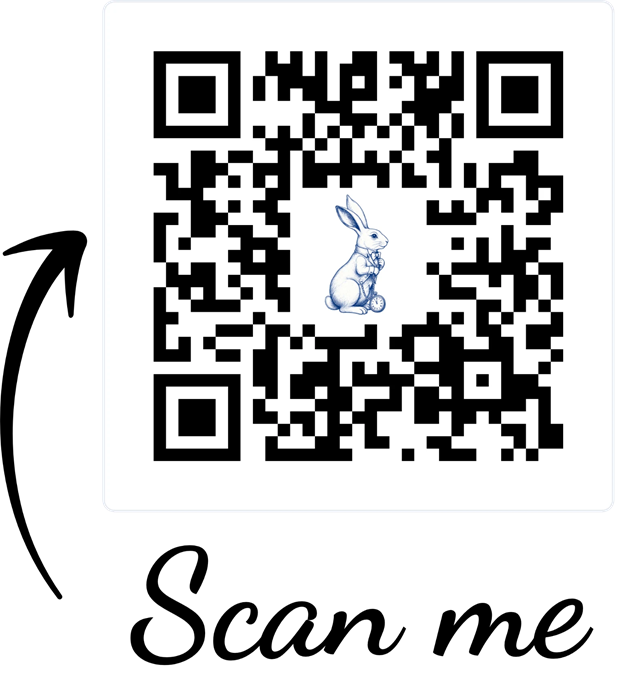
Follow the white rabbit.
Scan to open this guide on your phone, so every prompt is a tap away between meetings. Or put it on screen at your next leadership meeting and let the team scan it.
- Ready before the first meetingOne briefing shows what needs you this week, so the day starts with decisions, not catching up.
- Clearer communicationEmails, recaps and follow-ups go out sooner, with the decisions and owners spelled out.
- More time for customersThe hour you get back can go on the conversations that grow the business.
Three habits that make every prompt better.
- Be specificName the customer, the file, the meeting and the deadline. Copilot only knows what you point it at.
- Check the sourcesOpen the references Copilot gives you before anything goes to a customer or the board. You own what you send.
- Ask againIf the first answer is close, tell it what to change: shorter, a table, a chart, a different audience.
Prompts for other roles.
- Day in the lifeBusiness ManagerFrom the overnight inbox to the last reply.Get the prompts →
- Day in the lifeBusiness AnalystFrom a messy export to the executive summary.Get the prompts →
- Day in the lifeFinancial AnalystFrom sorting cost data to what-if scenarios.Get the prompts →
- Day in the lifeFinance ManagerFrom cash runway to the board scorecard.Get the prompts →
- Day in the lifeAccount ManagerFrom prepping the pitch to the follow-up.Get the prompts →
- Day in the lifeIssues Management ManagerFrom a media enquiry to the approved statement.Get the prompts →
- Day in the lifeFashion DesignerFrom the first concept to the approved design.Get the prompts →
- Day in the lifeMarketing ManagerFrom the swag shortlist to the hand-out.Get the prompts →
One day is the start, not the finish.
Get your first win with the Quick Win Checklist, then turn it into a habit across your team with The Copilot Playbook.
Want prompts like these for your own team?
We’ll look at how your people actually spend their day and build the prompts and habits that fit it.